Official Manual / First-Time Setup
Import a Shadowrocket Subscription and Connect for the First Time
Follow this order: add a server → choose a routing mode → connect → verify → troubleshoot. First establish a connection you can verify, then adjust rules and automatic connection settings.
Have the complete link or all required server details ready, and leave the connection switch off for now. Don't change DNS, rules, and protocol settings at the same time, or it will be difficult to tell what caused a problem. The screenshots below help identify screens and fields; their entries are not valid connection details. The interface may vary slightly from what you see on your device.
01 · Add Server and Import a Subscription with Subscribe
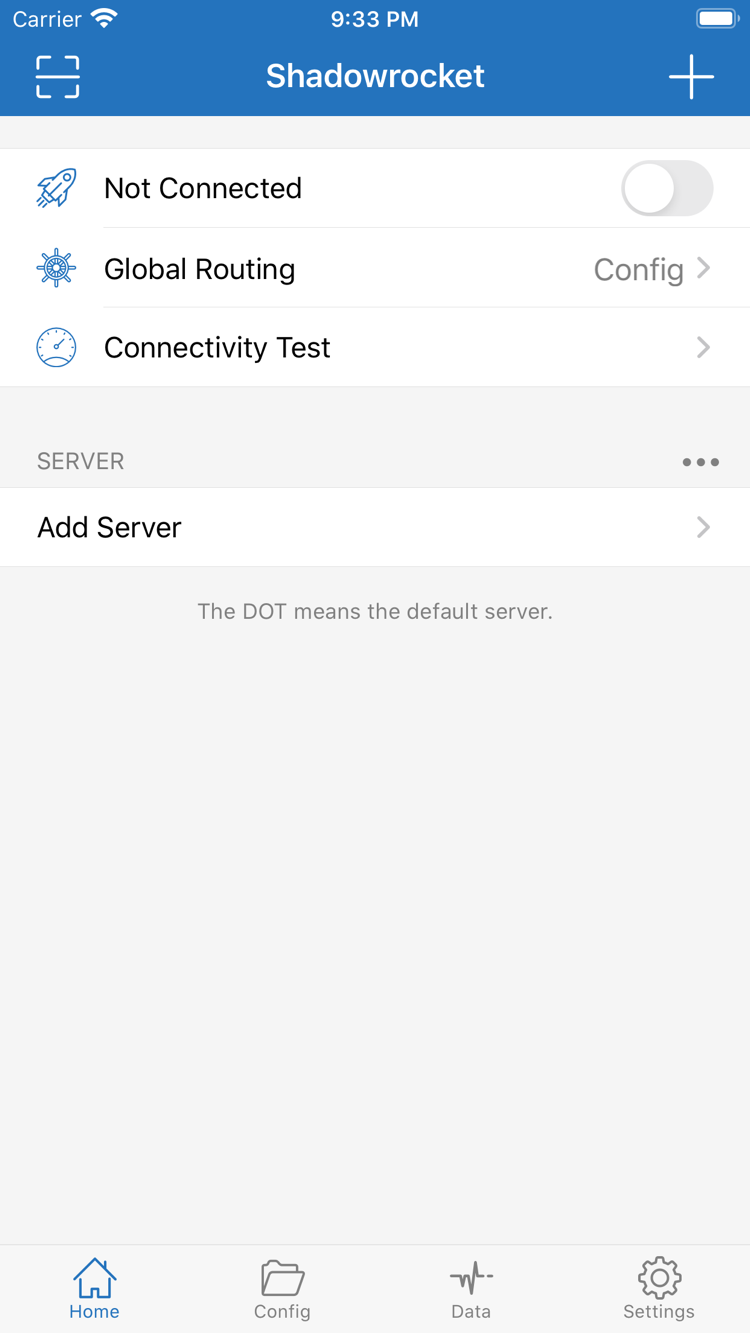
Open Home and find Add Server near the SERVER group. First identify what you have: a link that updates a server list is a subscription; a set of details including protocol, address, port, and authentication is for manual setup. Use whichever method matches your information. There's no need to add the same details twice.
Have a subscription link? Check it before saving
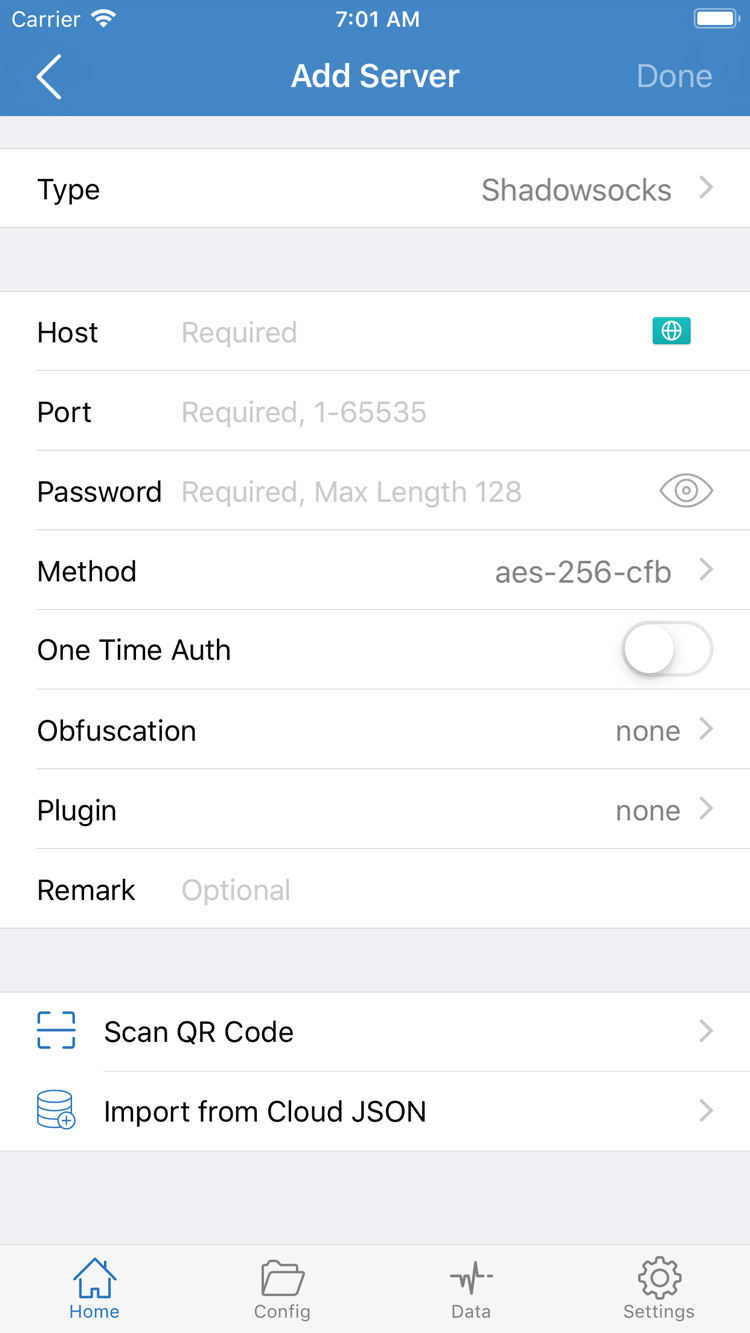
On the Add Server screen, tap Type, select Subscribe, and paste the link into the URL field. Check the entire link from start to finish to make sure it doesn't include extra text, quotation marks, line breaks, or spaces. Query parameters often control access, so don't remove anything after the question mark just because it looks unfamiliar, and don't try to fill in missing parts yourself.
Enter a name you can recognize, tap Save, and return to Home to check the import result. Look for the corresponding server group and confirm it contains selectable entries. If the list is empty, check the link and update result before proceeding. Changing Global Routing won't fix an empty list—the servers haven't been retrieved yet.
Have server details? Type determines which fields you need
For manual setup, first select the protocol under Type that matches the details from your service provider. The official screenshot shows fields for Host, Port, Password, and Method: enter the domain or IP address for Host, the specified port for Port, and match Password and Method exactly. Don't copy the screenshot's values or use fields from a different protocol.
The fields vary by protocol. For example, VLESS requires a UUID and the transport and TLS settings provided by your service provider. You can't work these out from the address and port. If details are missing, check the information you already have rather than trying random combinations. After saving, return to Home and confirm the new entry appears before continuing.
If you have a QR code, use Scan QR Code and allow camera access if prompted. After importing, check the protocol, address, and port. Import from Cloud JSON is a separate import option, not the standard subscription URL field. For shared links, clipboard imports, and managing multiple subscriptions, see the Subscription and Server Management Manual.
02 · Choose a Global Routing Mode
Once you have a selectable server, return to Home and tap Global Routing. This setting determines how requests are handled; it doesn't retrieve subscriptions or fix server passwords. Start by understanding the three modes: Config, Proxy, and Direct. After choosing one, return to Home and check the current value shown next to Global Routing.
Config: Apply the rules in the selected configuration
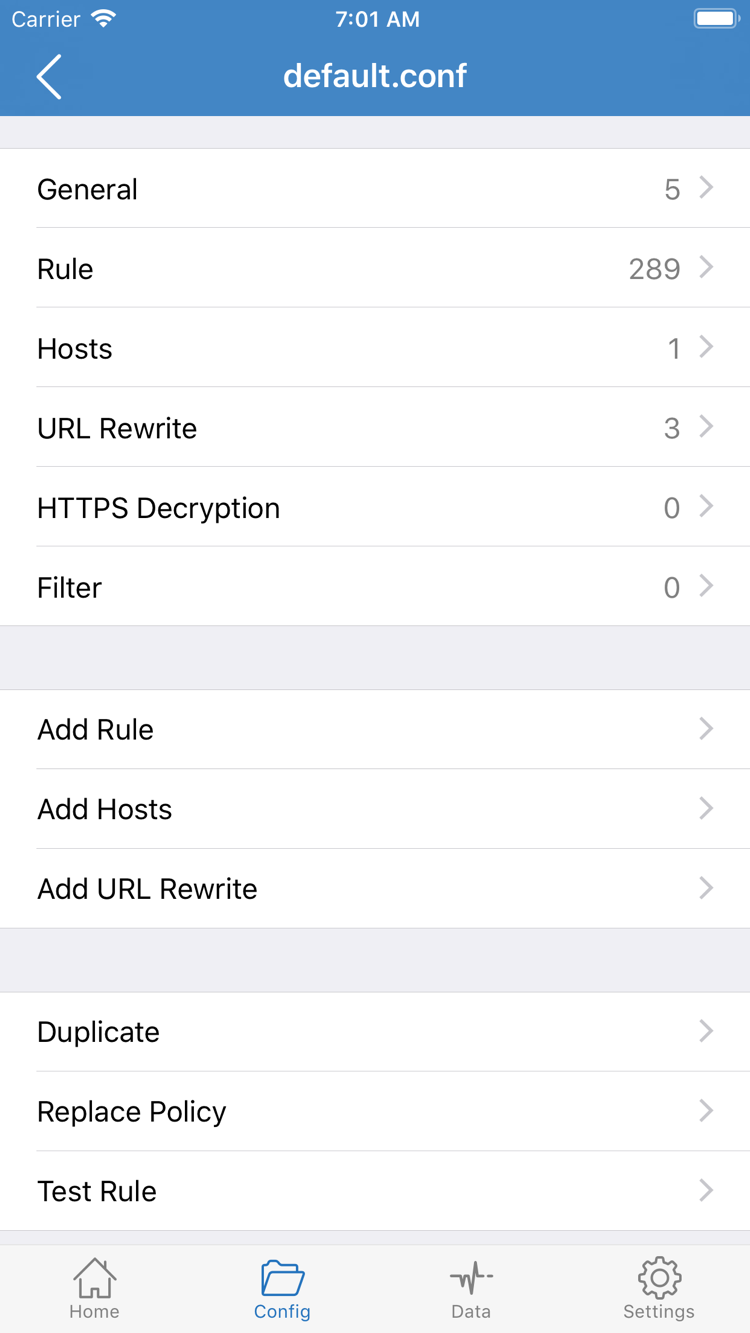
Config matches requests against the currently enabled configuration. Use it when you already have rules and want to direct different requests accordingly. The Config tab at the bottom and the Config option in Global Routing are related, but they serve different purposes: the tab manages and edits configurations, while the option determines whether requests are handled according to a configuration. Importing a server list does not automatically import or select suitable rules.
Open the Config tab to check which configuration is active, then review its Rule section. The official screenshot shows the configuration editor, with sections such as General, Rule, and Hosts, along with an Add Rule option. For initial setup, review what's already there; you don't need to change advanced settings such as URL Rewrite or HTTPS Decryption just to connect.
Proxy and Direct: Understand what each mode does
Proxy routes requests normally controlled by the selected routing mode through the current proxy server. It can reduce rule-related variables during basic troubleshooting, but it doesn't guarantee how every type of system traffic is handled. Direct sends requests directly. If you're checking whether the proxy server can provide access, Direct won't verify that.
Choose Config if you have a trusted, suitable configuration. To check the selected server's basic connection, you can temporarily use Proxy, then switch back to Config after testing. Note the original mode so you can restore it afterward. For rule order, policies, and configuration backups, see the management guide in the subscription manual.
03 · Select a Server on Home and Connect
Return to Home, select the server you want to test in the SERVER group, and confirm that it's selected. Then check Global Routing. Seeing a server in the list doesn't mean it's selected, and selecting one doesn't mean the connection switch is on. Check these three states separately, especially after importing multiple groups.
Tap the switch beside Not Connected at the top. On the first connection, the system may ask permission to let Shadowrocket add a VPN configuration. This authorizes the system to create the required network configuration; it isn't a prompt for subscription details. Confirm that the prompt is for Shadowrocket, follow the system instructions, and complete any required device verification. Don't enter your device passcode in the server authentication fields.
After granting permission, return to the app and check whether the connection status changes. If the switch turns off again or system authorization wasn't completed, don't keep tapping it. Check whether you dismissed the system prompt or still need to complete verification, then try once more. A VPN indicator or connection timer means the connection configuration has started, but it doesn't prove websites will load.
If you've already allowed Shadowrocket to add a VPN configuration, the prompt may not appear again. That's normal. On iPad, follow the same sequence: select an entry, check the routing mode, and turn on the switch. The layout may differ depending on how the screen is displayed, but the states to check are the same. Keep the current server and mode unchanged as you move on to verification.
04 · Connectivity Test and Verify Website Access
Check the connection status at the top, then tap Connectivity Test on Home and review the result. It reflects a response under a specific test method; it isn't a service quality guarantee or proof that every website will load. Even if you see a latency value, authentication, DNS resolution, routing rules, or the destination site may still have separate issues.
Next, open your browser and visit a website you normally use and are permitted to access. Check that it loads fully, then try a second, different site so you don't rely on a cached page. If the page was already open before connecting, reload it. Seeing old page content alone doesn't prove the request used the current connection.
Keep the current routing mode in mind when verifying access. If Direct is selected, a website loading only confirms direct access in that environment. With Config selected, a website loading doesn't necessarily mean it matched a proxy rule. To confirm how a request was routed, check the current rules and available request logs rather than guessing based on the connection indicator or page speed.
If the results are as expected, the first connection setup is complete. You can stop testing and keep the working settings; there's no need to change everything right away. To compare servers, switch one entry at a time and repeat the test with the same routing mode and similar network conditions. Results from different test methods or destinations aren't directly comparable.
05 · Settings and Common Troubleshooting Checks
When something fails, recall the last step you confirmed was working: Was the server list retrieved? Was a server selected? Was the connection established? Could you access the website? Checking in this order makes the issue easier to reproduce than re-entering details, changing configurations, and editing DNS all at once. After each check, retest the same website and change only one thing.
No subscription entries? Check the import first
If the expected entries aren't in the SERVER group, check that the link is complete, is in the URL field for Subscribe, and that the device can reach the address during an update. An account sign-in page isn't necessarily a subscription link. Seeing a login or information page doesn't mean the app received server details it can parse. Check link validity and service status with your service provider. Don't post the full link publicly for others to check.
Connection fails after switching on? Check the selected server and authentication
Confirm that an actual server is selected, then check Type, Host, Port, and authentication details one by one. When entering details manually, watch for similar-looking characters, trailing spaces, and TLS and transport settings. Complete system authorization if it's still pending; fill in any missing fields. Toggling the switch again won't make up for either. Also check whether another VPN connection is active on the device, so you don't mistake a connection switch for a stable connection.
Test responds but websites fail? Check DNS and routing separately
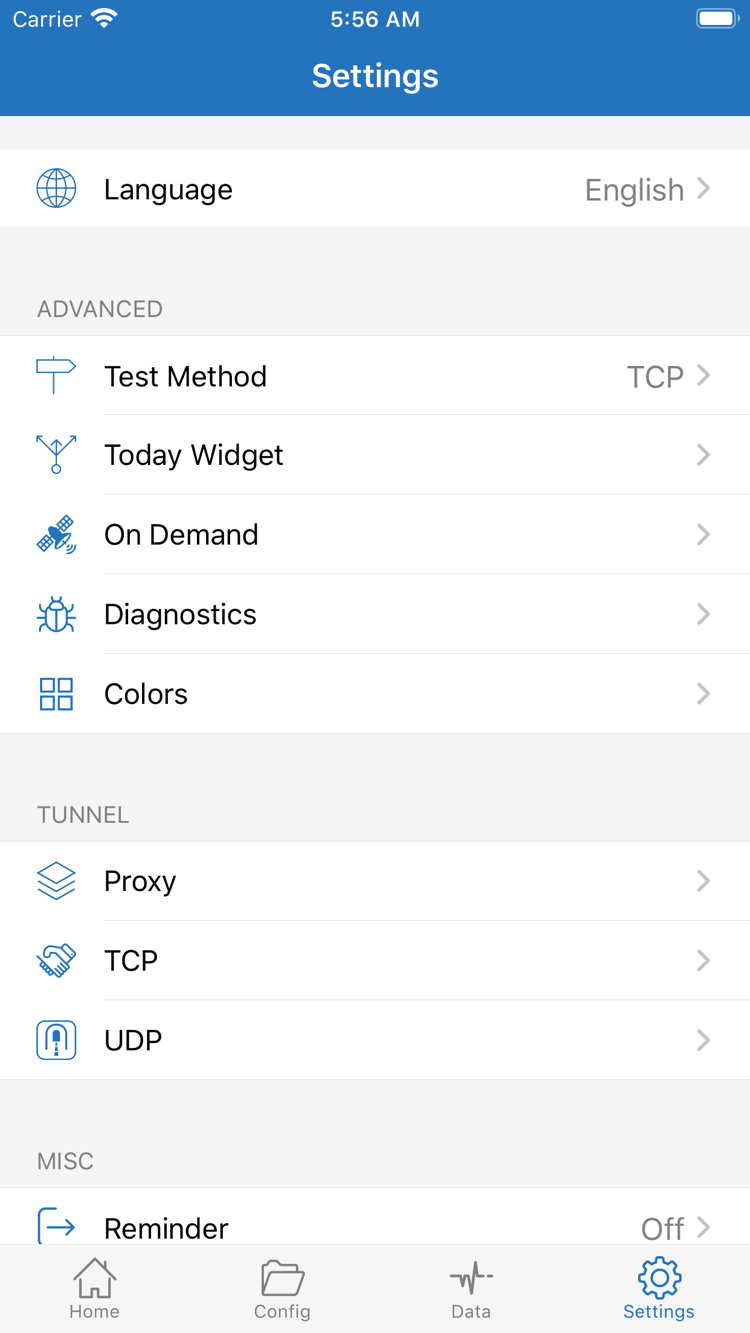
Try another everyday website to see whether the issue affects one site or many, then check whether Global Routing is set as expected. In Settings, review Test Method. Different methods check different things, so a latency result can't rule out every issue. If you need Diagnostics, focus on information relevant to the current problem and check for addresses or credentials before sharing logs.
Don't change DNS to a random address or bypass certificate checks to mask authentication issues. For more help with “latency is normal but websites won't load,” DNS, and rule matching, see Frequently Asked Questions. If the issue involves subscription updates or managing multiple groups, continue with the subscription manual. You don't need to tackle every advanced setting during initial setup.
Connection turns back on after you switch it off? Check On Demand
If the connection starts again after you turn it off manually, open Settings and check whether On Demand is enabled and whether its current conditions are triggering it. For your first test, confirm the result of a manual connection before setting up automatic connection behavior. Note the original settings before changing them, so you don't accidentally delete a server or configuration while troubleshooting. When you're done, restore the settings you need and repeat the cycle: select a server, connect, and verify website access.
The app's connection settings and your service provider's access requirements each have limits. If the details match and the configuration is clear but the issue persists, note the steps that failed, the device's network environment, and any error message, then check the service status with your service provider. Repeatedly deleting everything won't help identify the cause. Back up any configurations or connection details you want to keep before changing or deleting them.